
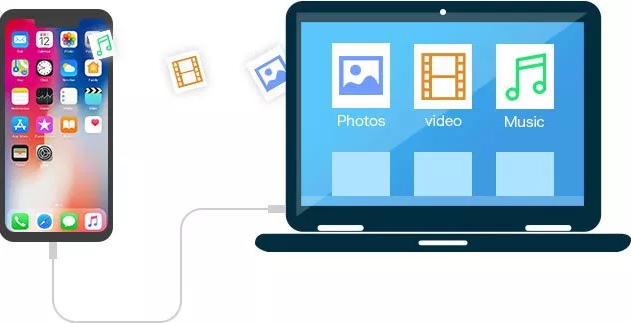
All the iOS running iTunes as default data manager to manage and back up the device. But as an opinion of most of the iOS users, using iTunes might be tricky and frustrating sometimes. So no wonder why a lot of out there drawn to Android right? But it is not as bad as it looks. Because we have free iTools. It is a remarkable application that being released by ThinkSky. You’re gonna figure out everything in few minutes.
Why should we use iTools?
Basically, because the default app does not provide you with as much better features as free iTools do. You can only use iTunes to transfer apps to an iPhone or iOS device that has been linked to your iTunes account on your computer. And obviously, the computer should be a Mac. How about windows? This application provides you a such a great facility to share your data with windows also.
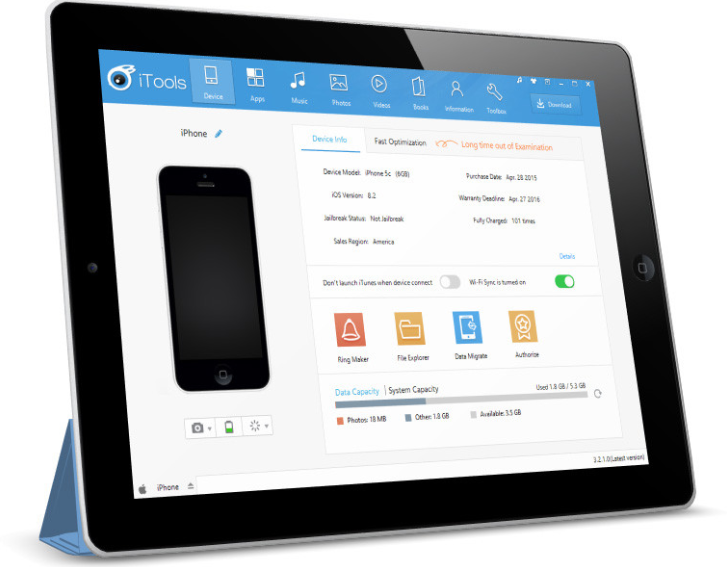
It is helping users to backup apps, data, contacts, games, photos, videos, music from iPhone to PC. Except for all data sharing among idevices such as music, photos, videos, movies, books, contacts, notes, files and so on it also provide screen mirroring iPhone/iPad to PC. It allows you to screen mirroring iPhone to your Windows PC as well. It is excellent management tool for Apple. Plus its all free. Isn’t that magnificent?
The latest version
The latest iTools version is 4.4.1.8. It is compatible with all the latest Apple version such as version 11 with all the idevices such as Pad, iPod Touch and iPhone series of device. But when you going back to the past versions such as version 5, it might be less compatible. Latest itools improve their performance to use less space of hard drive, and less power in CPU also.
Transfer an App to your iPhone
- First of all, you have to download and install itools on your device before we start.
- Launch it.
- Connect your PV via USB cable.
- Click on Applications under the left pane’s Library.
- Just drag the app file to the it’s main window.
- Click on the Open button at the lower right part of the dialog box.
- Now the application will be installed in your device.
Transfer a song to your iPhone
- Connect the PC via USB cable.
- Click on Music at the left of the it’s window
- click the Import button at the top of the window
- Find your song file
- Click on it and click the Import button of the dialog box
- Now the song will be uploaded to your mobile storage.
 Download iTools